> ## Documentation Index
> Fetch the complete documentation index at: https://centrixnodes-mintlify-bc69dab1.mintlify.site/llms.txt
> Use this file to discover all available pages before exploring further.
# How to set up 2FA
> Learn how to set up two-factor authentication (2FA) on our game panel.
## Step 1: Head to the game panel which can be found [here](https://panel.centrixnodes.net/)
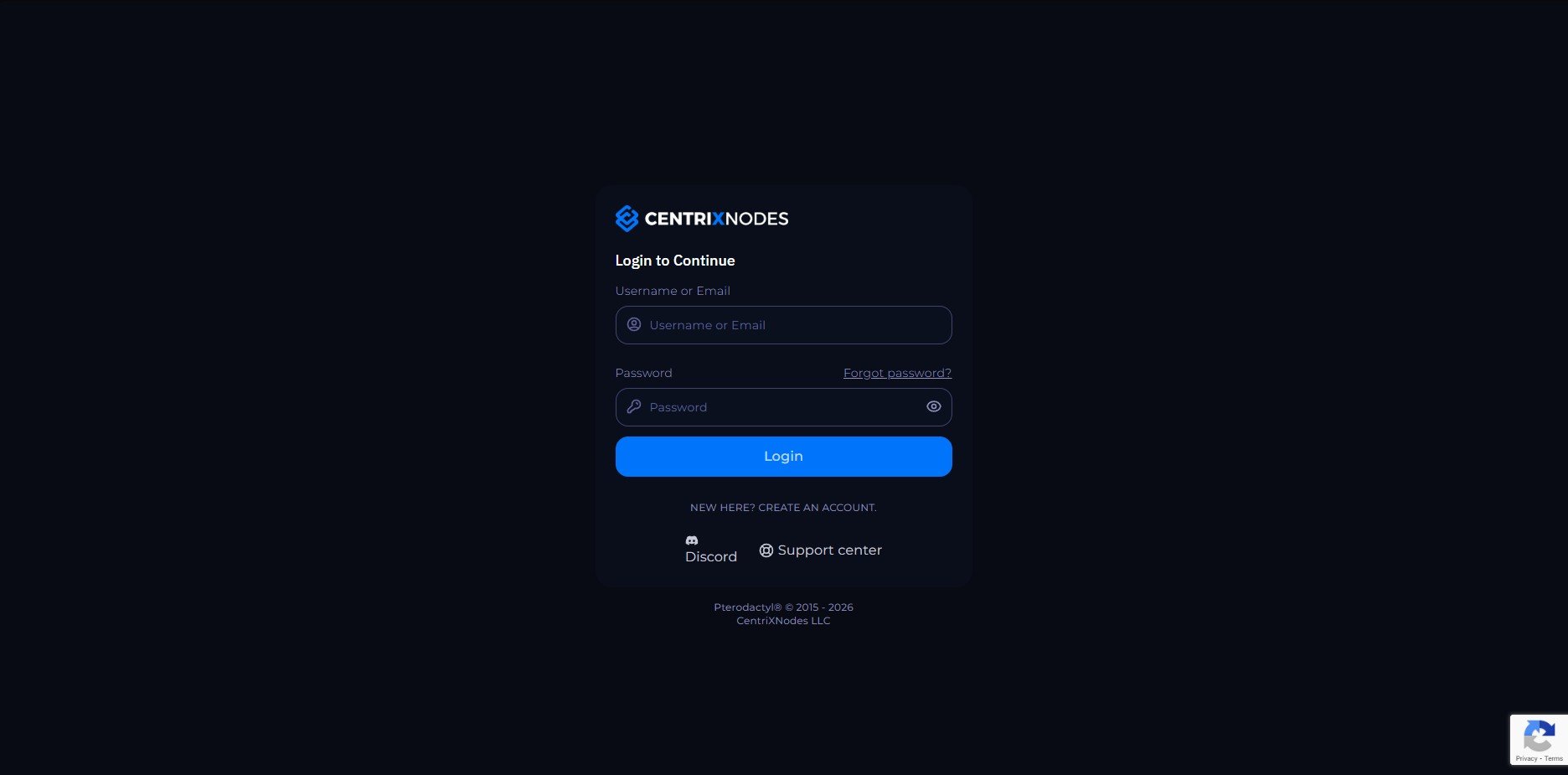 ## Step 2: Login to the game panel and head to the "Account" section in the bottom left corner of the page.
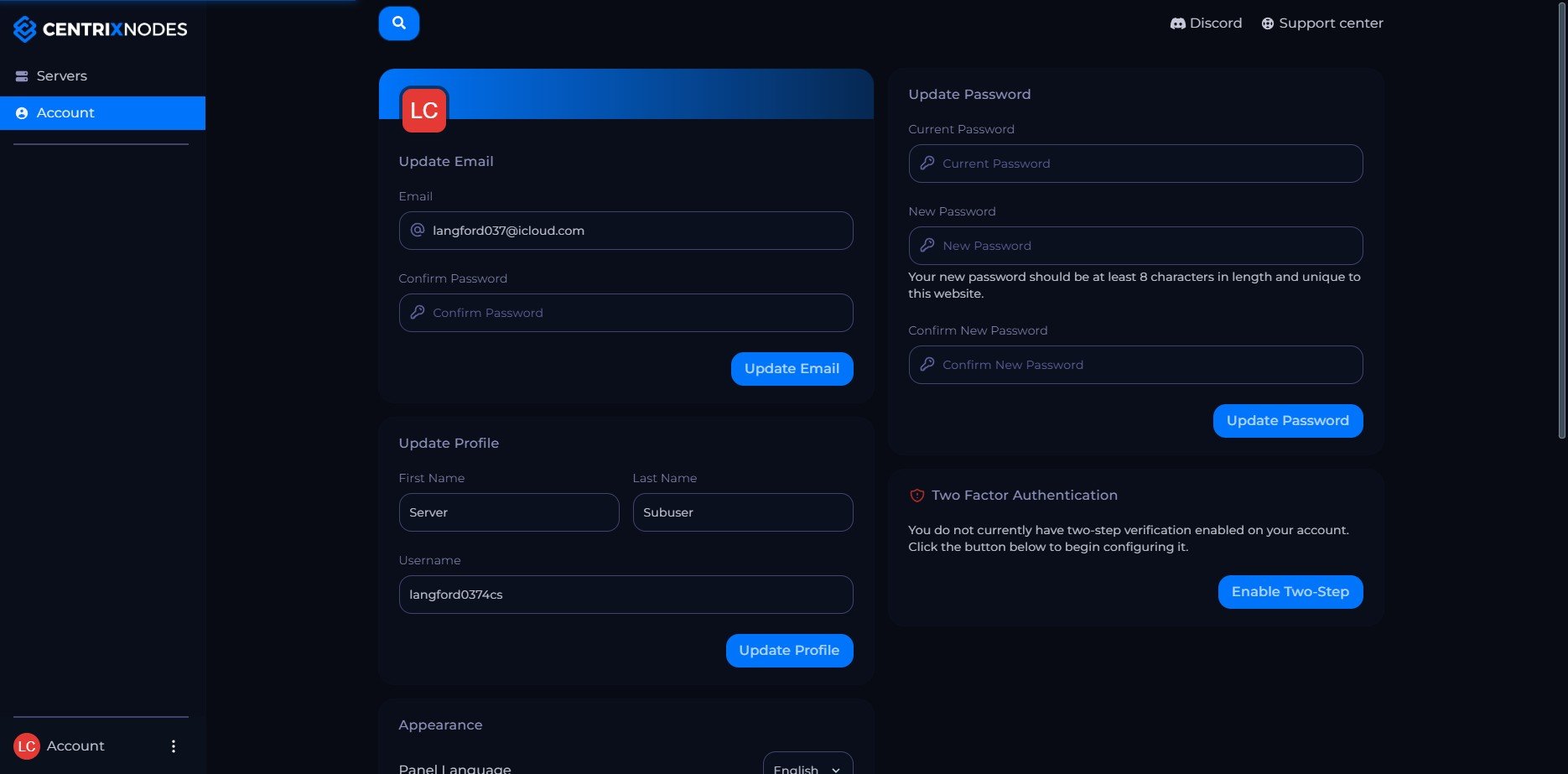 ## Step 3: Click on the "Enable 2FA" button to start the setup process.
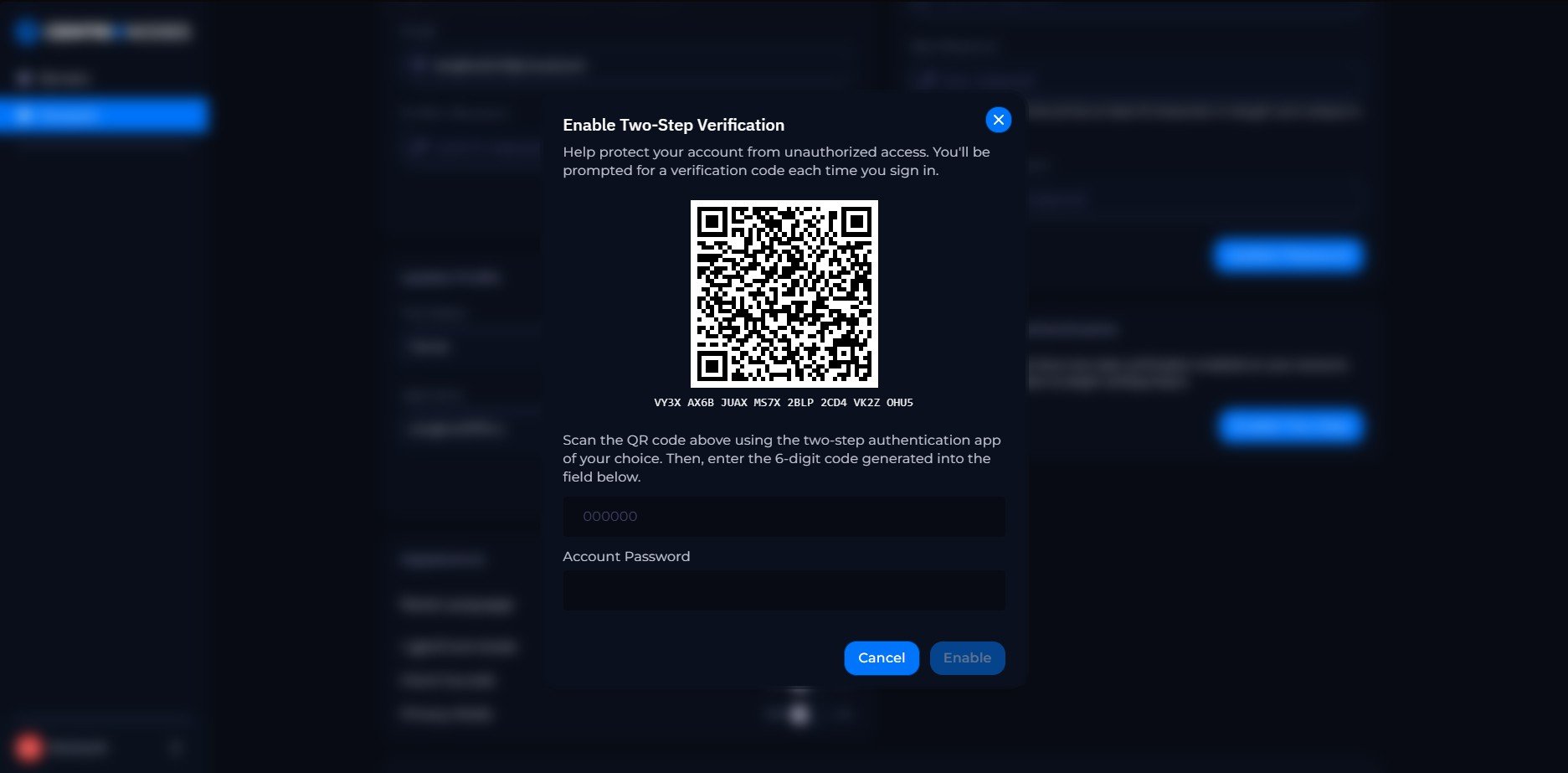 ## Step 4: Follow the instructions to set up 2FA using an authenticator app (e.g., Google Authenticator, Authy). Scan the QR code or enter the provided key into your authenticator app.
**Congratulations!** If you've followed all the steps correctly, you should now have 2FA enabled on your account. This adds an extra layer of security to your game panel account, helping to protect your server and data from unauthorized access. Remember to keep your authenticator app secure and do not share your 2FA codes with anyone.
## Step 4: Follow the instructions to set up 2FA using an authenticator app (e.g., Google Authenticator, Authy). Scan the QR code or enter the provided key into your authenticator app.
**Congratulations!** If you've followed all the steps correctly, you should now have 2FA enabled on your account. This adds an extra layer of security to your game panel account, helping to protect your server and data from unauthorized access. Remember to keep your authenticator app secure and do not share your 2FA codes with anyone.